
There are few things more frustrating than trying to work, game, or stream a movie and experiencing stuttering, pausing, and other unstable behavior due to a dodgy internet connection. Even if your Wi-Fi signal is strong or you’re using a wired connection, you can still experience hiccups due to the irritating phenomenon of packet loss.
If you’re wondering what packet loss is and how to fix it, we’re here to help explain the issue and show you how you can mitigate it.
What is a packet?
Think of a single email as a convoy of buses taking the class to Disney World. Each bus carries a portion of the overall student body — your email — along with information about where it’s going, where it’s from, and who is riding in the seats.
Networks essentially break your email — and all other data — down to these buses, or packets. In turn, the email you send to mom is not just one large file crammed through the internet pipes. Instead, it is a convoy of little data bits so everyone else can simultaneously send emails to mom too.
Once all buses reach the set destination, their payloads unload to recreate your message in Mom’s email client.
A single packet contains three main components:
Header
- Source IP address
- Destination IP address
- Packet type
- Packet number
Payload
- Part of your overall data
Trailer
- Error correction
- End of packet info
The typical packet size is around 1,500 bytes, though the actual size may be circumstantial.
What is packet loss?
This is when one of our metaphorical buses does not reach Disney World.
Keep in mind that the bus convoy does not take a straight shot from your PC to the destination using a single freeway. Instead, the convoy takes the best route through multiple small towns. For instance, your browser’s connection may travel through 20 “stops” before reaching Digital Trends’ closest host server. That number may be greater or less, depending on your geological location.
In the same way that real-world roadways might disrupt the buses’ travel, though, sometimes packets face similar roadblocks and diversions. In the digital world, these traffic jams and reroutes can block some buses from reaching Disney World entirely. To prevent total disruption, packets are retransmitted, but the result translates to lag when playing online games, choppy video streams, and broken audio. Even web browsing can feel slow.
Network congestion isn’t the only factor
Packet loss isn’t primarily tied to network congestion. Other factors can cause issues too, such as:
Faulty hardware: Damaged cables, outdated modems and routers, and corrupt network card drivers can have a huge effect on network performance. For large companies, problematic network switches and firewalls will cause issues too.
Overloaded devices: In this case, network hardware is working harder than usual to handle all the traffic. These devices will temporarily hold packets until they have time to process and send them along. By the time a packet reaches its destination, it’s arrived too late. In some cases, it’s discarded.
Faulty software: Software running on a network device could have flaws — either originally or as a side effect from a recent update — requiring a reboot, patch, or complete reinstall.
Incorrect configurations: Network devices on a single link set at two different duplex modes (aka duplex mismatch) will assume a “collision” and discard or delay packets.
Wireless is less reliable: Due to the nature of wireless, packets have a better chance of vanishing into the digital void due to radio frequency interference, signal strength, and distance.
Security threats: Hackers may have control of a network device and are using it to flood traffic, blocking the destination. Another hack can cause network devices to intentionally drop packets.
How do you see packet loss?
If you are short of time, we suggest you visit this Packet Loss Test website and run the quick test to see what the results are on your network. For a more direct, thorough option, you can confirm packet loss by using the PowerShell (or Command Prompt) in Windows. Here’s to do that:
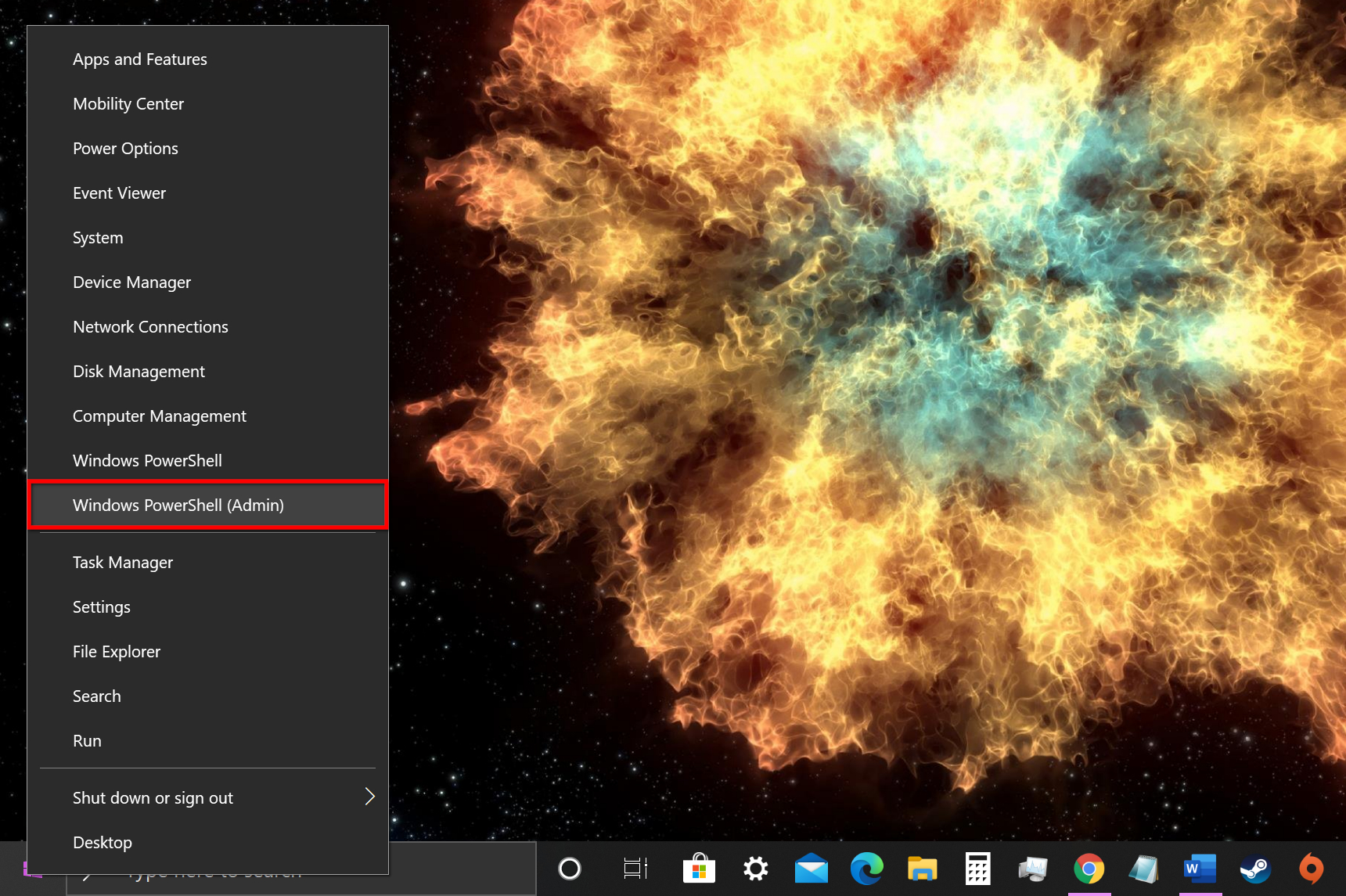
Step 1: Right-click on the Start button and select Windows PowerShell (Admin) on the Power Menu.
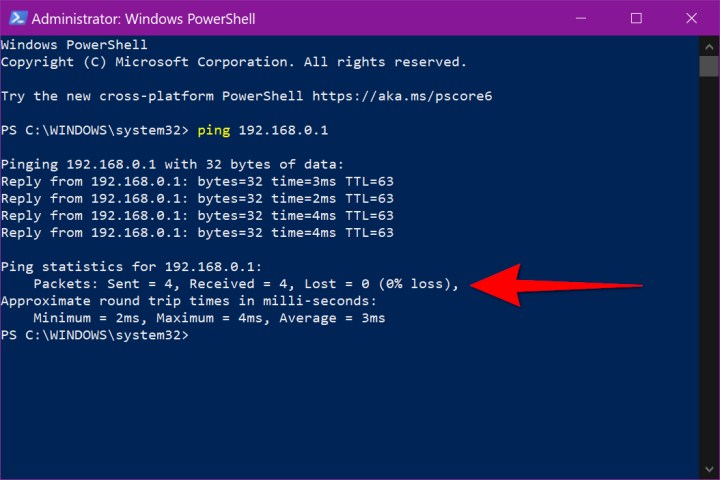
Step 2: Type ping followed by your router’s address (here’s how to find it). For instance, you may type:
ping 192.168.0.1
In the results, you will see a percentage next to Lost. As shown below, you want that number to be zero, meaning all packets reach their destination.
However, that’s merely local. If you want to see the packet loss between your PC and a website, you’ll need to ping the web address.
For instance, type the following:
ping www.digitaltrends.com
In our test, results (currently) reveal zero packet loss, which is excellent given there are around 11 hops between this writer and the site’s host server. We performed this test using a PC on a wired connection.

However, by using the ping command, you’re only sending and receiving four packets. If you want a longer test, type the following instead:
Ping [insert address] -t
This test will continue indefinitely until you type the Ctrl + C key combination.
If you’re curious to see how many hops reside between you and the destination, type the following:
tracert [insert address]
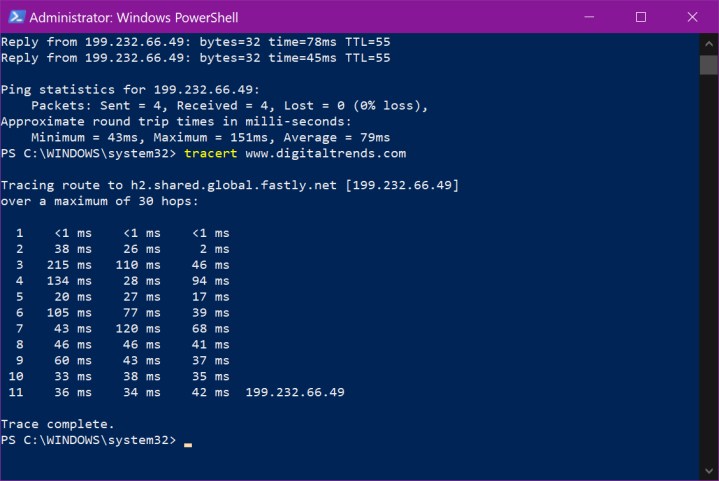
Typically the results show your current IP address along with the addresses of all the hops, but we removed them from the screenshot for security reasons.
On MacOS and Linux, you can use Terminal to run the Ping command. On MacOS, Terminal is either pinned to the dock, or you can typically find it in the Other folder on the Launcher.
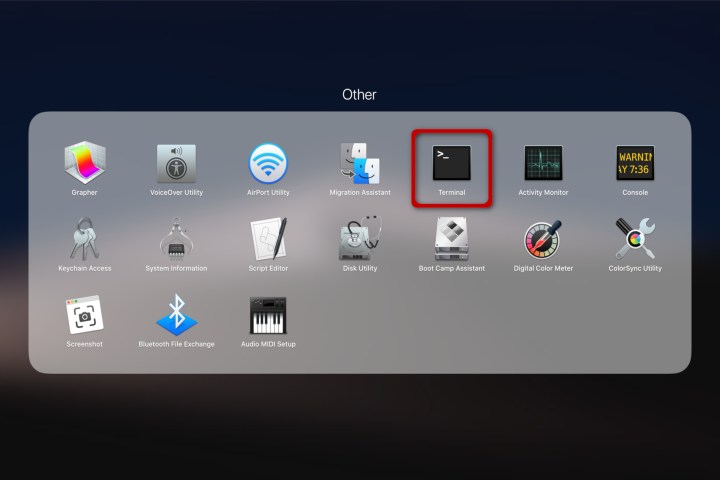
If you have Linux installed on a Chromebook, Terminal likely resides in the Linux Apps folder on the Launcher.
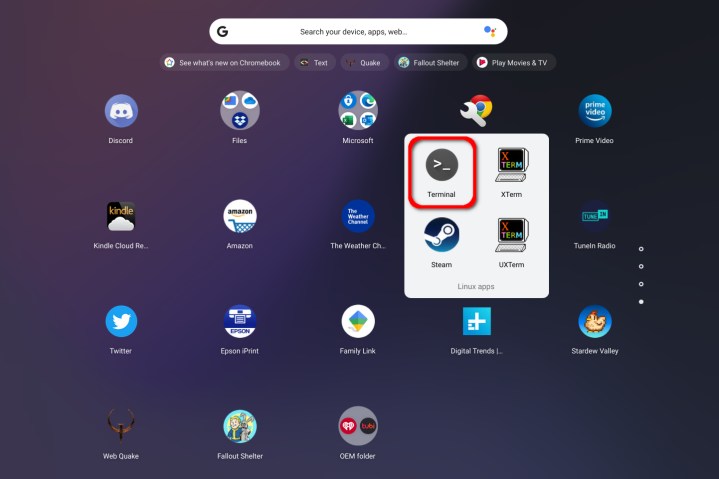
However, like the Ping -t command in Windows, the test runs indefinitely, requiring you to type the Ctrl + C or Command + C key combination.
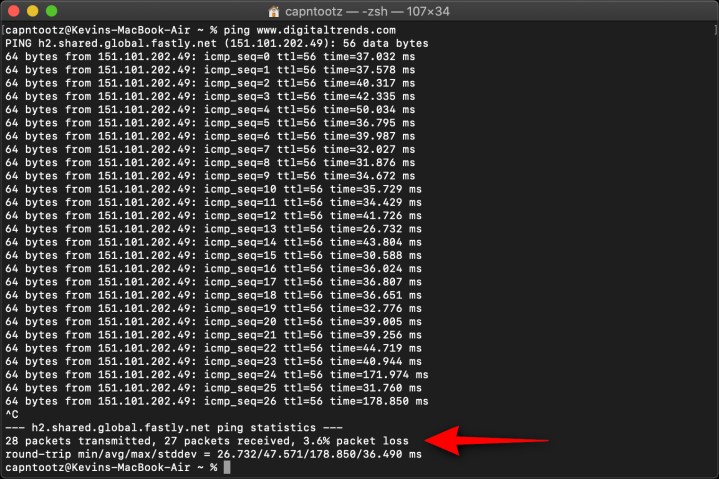
In this case, we noticed packet loss when pinging Digital Trends with a MacBook Air on a 5GHs wireless connection. A second test pinging the local router showed no loss on our end. However, a third test re-pinging Digital Trends showed packet loss reduced to zero.
That said, random drops will happen — you just don’t want a continuous loss.
How do you fix packet loss?
Many issues causing packet loss may not even be on your end of the connection, but that doesn’t mean there aren’t some things you can do to try to improve it.
Restart your PC
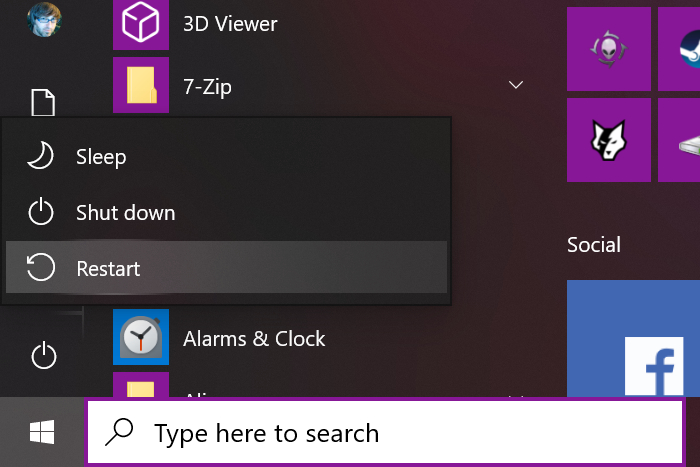
The software running on your PC — whether it’s a driver, service, or application — can temporarily experience conflicts.
For instance, tabs in Google Chrome may consume 75% of your system memory, causing other services to throttle or crash. Rebooting can solve software issues in some instances that may influence network traffic.
Check your connections
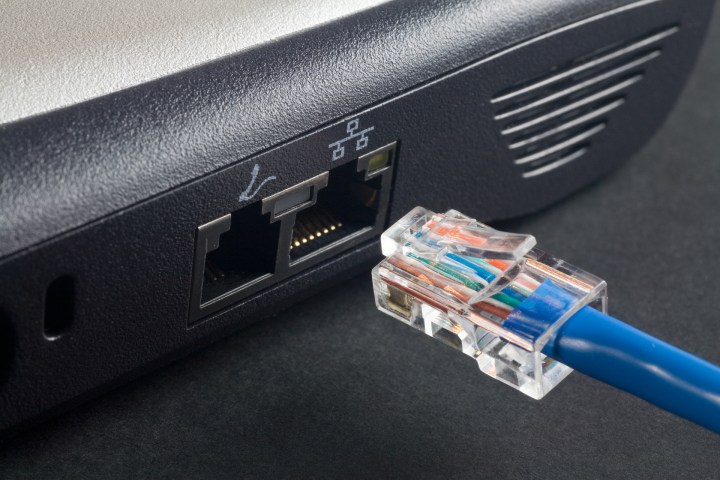
It might seem simple, but cables not quite plugged in properly can cause all sorts of problems, so it’s always worth checking. If you’re using a wired connection to your PC or laptop, unplug the cable and plug it back in again. Do the same with your router’s connection to the phone line to be doubly sure.
Update software
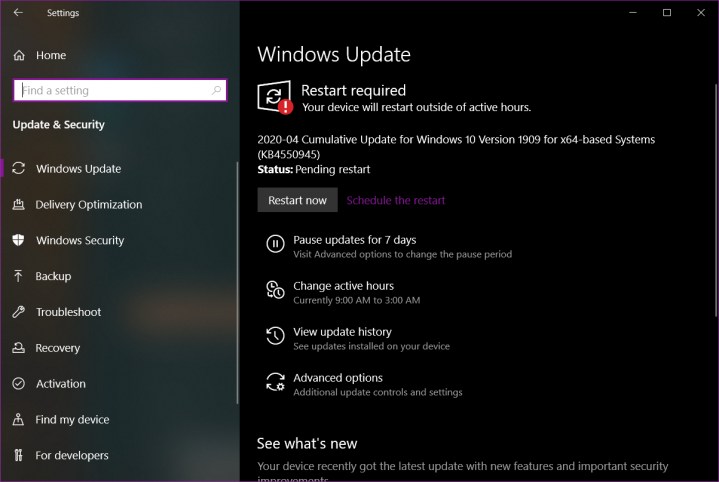
Sure, updates can be annoying given they can bring you to a temporary standstill. But they’re also necessary, especially if older firmware contains flaws that cause the underlying device to lose your packets.
Make sure your PC’s operating system and network drivers are current, along with any network-accessing software you use, like Google Chrome and Mozilla Firefox.
Are you using a router? Be sure the firmware is current.
Move to wired connections
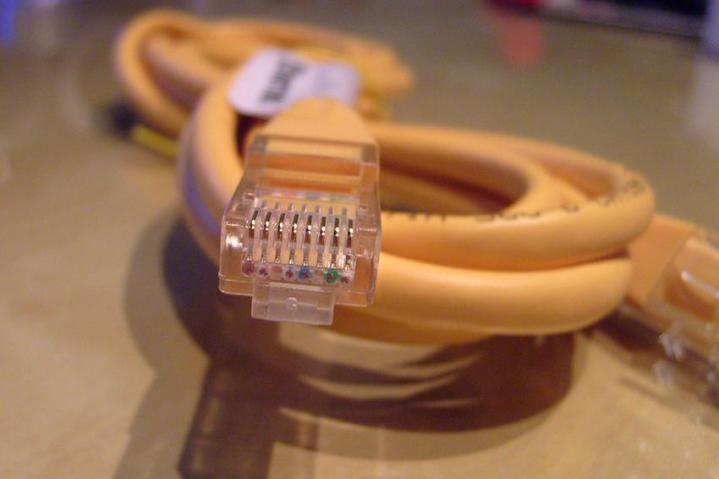
Wireless is great for moving about the house while listening to Baby Shark on your phone, but the connection can fall prey to radio frequency interference, signal strength, and distance. If you don’t see any real connection problems, then continue as usual.
But if you experience noticeable lag on a desktop, laptop, set-top device, gaming console, or similar device, moving to a wired connection might make a big difference. Not only do you get faster throughput, but most Ethernet cables are also shielded, which can reduce interference.
Turn off possible interference

For wireless devices, radio frequency interference can be an issue. That means you should switch off other wireless devices that are not in use, like wireless headphones, speakers, and even Bluetooth connections on smartphones and tablets. You could also consider using your router’s settings to change your wireless channel to reduce competition with your neighbor’s Wi-Fi.
If your devices are wired, make sure the cables aren’t draped near anything that can cause electrical and magnetic interference, especially if the cables are unshielded. If you’re using a Powerline connection, the electrical layout of your home or office can cause issues in addition to the “noise” created by large appliances.
Revisit Quality of Service settings
If other users in your home are competing with your connection and your work needs to take priority, you can assign bandwidth by digging into your router and adjusting the Quality of Service settings to prioritize traffic. That means allocating more bandwidth to your devices over others.
How you get to those settings is different in each router. Once found, you can create “rules” that allot specific traffic, services, or devices with a bandwidth level, like “highest” or “maximum.” Typically, you must set your network’s overall upload and download bandwidth less than your subscription’s allowance so the QoS component has room to make adjustments.
Restart everything
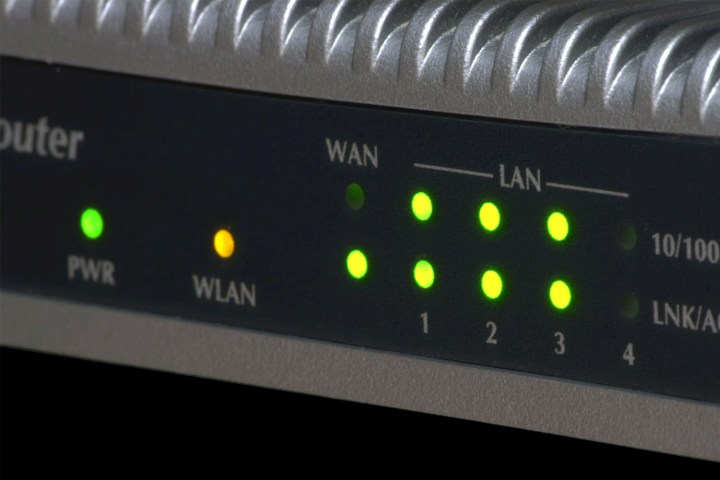
Somewhere between you and the World Wide Web, some digital gremlin ate your packets. While the issue may not reside on your end of the ISP’s connection, restarting everything is a great way to troubleshoot without digging into the details. Unplug your modem and/or router and hold the power button for 30 seconds, then plug it back in again.
For all other connected devices, rebooting is a good idea too — it never hurts to start this way. The local network assigns your device an address that may change when the network reboots (unless it’s static). You can try disabling Wi-Fi or unplugging the Ethernet cable for a moment, but you may still experience connectivity issues until you reboot.
Replace or upgrade your hardware
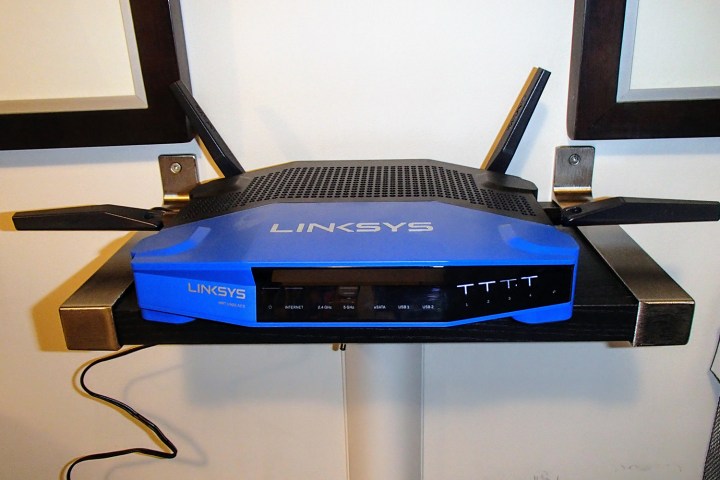
Sometimes, old or defective hardware can be responsible for your packet loss. Upgrading your router or modem if you’ve had it for a while should be a last resort, but if you’ve tried everything else you can think of, it might be your best bet. In the end, even if it wasn’t entirely responsible for your packet loss, the raw performance boost your get will be worth it.
However, if you think your desktop network connection is what’s giving you problems, you can always try adding a secondary network card instead. While you can’t do this with most laptops and tablets, it might be just what you need for a desktop computer.
When it comes to attacking technical issues, we understand that many people experience bouts of anxiety and confusion. However, you can rest assured that all issues which are tech-based have simple tech solutions. Packet loss is just one example of a tech-based complication that, once you discover the problem, you can solve easily. After all, it is very hard to solve an issue if you cannot identify the problem easily.
Deal with a DoS attack
Businesses often blame ongoing packet loss to Denial of Service (DoS) attack. IT experts determine IP addresses and send block requests. You can block these attacks and quickly detect them with modern cybersecurity. Switching to the cloud also decreases DoS attack consequences.
Install a network performance monitor
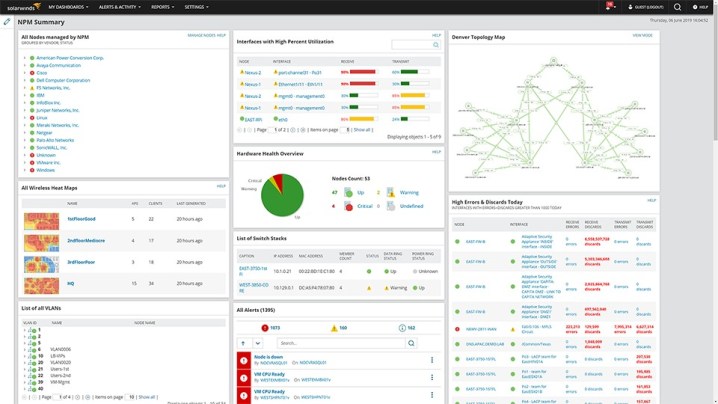
Trying to stay on top of everything that goes into packet loss is frustrating, especially if you want to move on and ensure that services continue to be available to your users. Network performance monitoring software is a top-tier solution that allows you to track your network’s health as a growing business. Solarwinds Network Performance Monitor and Progress WhatsUp Gold offer free trials to new users.
What does 100% packet loss mean?
These fixes assume that what you’re dealing with are occasionally lost packets, where a small portion of the data is dropped as it travels over your connections. However, sometimes you might see an error saying that you are experiencing 100% packet loss. You might see this error on an Xbox, for example, when there is an issue with its connection to the internet.
100% packet loss means that no packets of data are being communicated at all. In other words, there is no communication between the device — say, in this case, your Xbox — and the servers it is trying to reach.
This error indicates a problem either with your network settings, or with the server you are trying to communicate with. Xbox users have reported seeing this error when the Xbox servers were down, or it can occasionally happen if certain types of traffic are blocked by your ISP. If you are experiencing this error, you should first try rebooting the affected device, then check your network settings and speak to your ISP if the problem persists.